Chatbot Chats
Chat with a chatbot in a dedicated conversation view, with message actions, optional personas, and a details sidebar.
Chat Interface Overview
Example of the main chat interface showing a conversation with a chatbot
Starting a Chat
Open a chatbot and you’ll land in its chat. If it’s your first time chatting with that chatbot, the chat starts with the chatbot’s configured greeting.
Starting a New Chat
Entering a chatbot chat and seeing the greeting
Chat Interface Features
Typing Indicator & Typing Animation
While a response is being generated, the chat shows a typing indicator. When a new chatbot message arrives, the UI can display it with a typing-style reveal animation.
Typing Indicator
Typing indicator shown while waiting for a response
Typing Animation
Example of a newly received chatbot message being revealed with a typing animation
Message Bubbles & Emotions
ChatUnreal supports emotion display in chats. When enabled, the latest chatbot message can be styled using your chosen bubble style and emoji settings.
- Bubble styles: Simple, Glow, Color, Border, Gradient
- Emoji display: Position and emoji type can be customized
- Toggle: Emotion display can be enabled/disabled
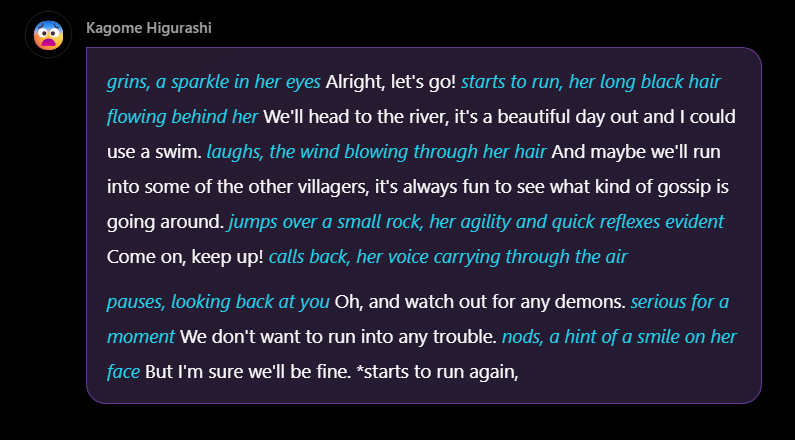
Bubble Style Examples
Examples of different bubble styles for the latest chatbot message
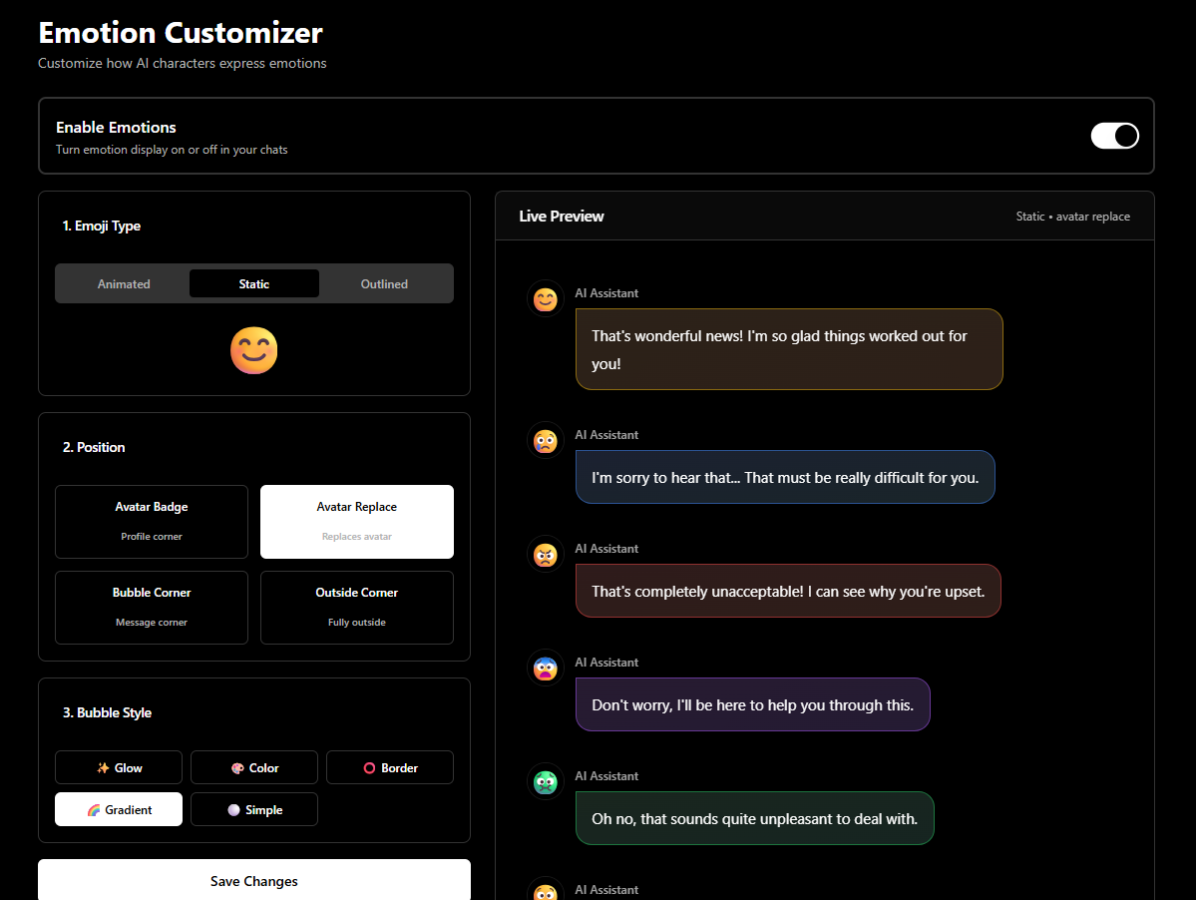
Emotion Customizer
You can open the Emotion Customizer from the chat sidebar to configure how emotions look in chat (emoji type, position, alignment, and bubble style).
Emotion Display Examples
Examples of emotion indicators shown in chat
Chatbot and user avatars appear next to messages to make the conversation easy to follow.
Message Actions
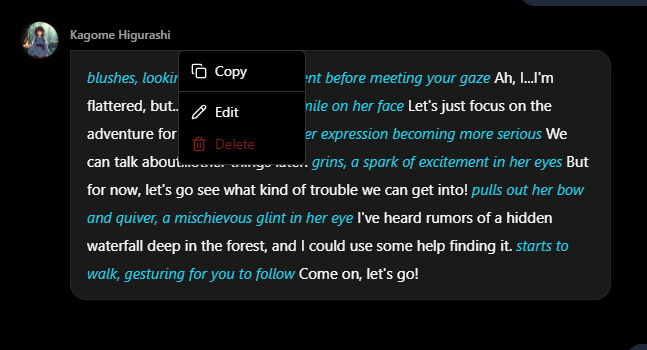
Message Action Buttons
Message actions like Copy, Edit, and Delete
Edit Messages
Modify your sent messages to steer the conversation
Delete Messages
Remove unwanted messages from conversation history
Copy Messages
Save memorable moments to your clipboard
Chat Input
Text Formatting
Enhance your messages with formatting:
- *asterisks*: Use for actions or emotes (e.g., *waves hello*)
- **bold text**: Emphasize important words
- Variables: Use {{user}} and {{char}} as placeholders for names
Conversation Image Generation
The chat input includes an image button. Image generation is gated (sign-in / subscription) and requires an existing, saved conversation with at least one message.
Image Generation
Image generation entry point in the chat input and the upgrade/sign-in gating modal
Multiline Messages
Press Shift+Enter to create line breaks within your message. This is useful for longer, more detailed responses or creative writing.
Voice Input
The chat input also supports voice-to-text in compatible browsers. When you start recording, your spoken text is appended to the message box.
Chat Features
Chat History
All your conversations are automatically saved. Return to any chat at any time to continue where you left off. Your chat history is private and only visible to you.
Message Limits
If you hit usage limits while chatting, the app will show a message limit modal.
Message Limit Modal
Example of the message limit modal shown when limits are reached
Chat Details Sidebar
Open the right-side chat details sidebar to access chatbot info and quick actions:
- View Profile: Jump to the chatbot’s profile page
- Change Persona: Switch persona (only shown when available for the current chat)
- New Chat: Start a fresh conversation
- Share Chatbot: Open the share flow for the chatbot
- Emotion Customizer: Configure how emotions appear in chat (may prompt sign-in)
- Generation Settings: Open response generation parameters (saving requires a subscription)
- Manage Memories: Open the Memory Manager (subscription-gated)
Chat Details Sidebar
Sidebar actions like View Profile, New chat, (optional) Change Persona, Share, Emotion Customizer, and settings
Personas in Chat
If you have personas, you may be prompted to pick one when starting a new chat. Persona selection is intended for the beginning of a conversation.
- The app may show a persona selection modal on new chats
- You can change persona before sending your first message
Persona Selection
Persona selection modal shown at the start of a new chat
Generation Settings
Generation Settings lets you adjust response parameters like response length and sampling controls. Settings are stored locally, and saving is restricted based on your subscription.
Generation Settings
Generation Settings modal with sliders and save/upgrade behavior
Memory Manager
Memory Manager lets you add, edit, and delete long-term memories associated with a conversation (available based on your subscription).
Memory Manager
Memory Manager modal showing memories for the conversation
Mobile Chat Experience
The chat interface is fully optimized for mobile devices. Enjoy seamless conversations on your phone or tablet with touch-friendly controls and responsive design.
Tips for Better Conversations
- Use detailed, descriptive messages to get more engaging responses
- Use the edit feature to guide the conversation direction
- Use actions in *asterisks* for more immersive roleplay
- Experiment with different conversation styles and tones
- Use Memory Manager (if available) to emphasize important details